Localizing Kanzi applications
Localization involves the creation of application resources for locales that you want to support in your application. To use localized resources in your Kanzi application you first have to enable localization in your Kanzi Studio project. See Enabling localization.
You can create localized text resources in Kanzi Studio or outside of Kanzi Studio and then import the resources to your Kanzi Studio project. See Localizing text resources.
You can see all localized text resources and locales used by your application in Kanzi Studio in the Library > Localization.
Learn how to localize your Kanzi applications by completing the localization tutorial. See Localizing your application tutorial.
Enabling localization
When you enable localization:
- Kanzi Studio replaces the Text properties with the Text Resource properties in all Text Block and Text Layer objects. The Text Resource property enables you to set which text resource you want to use for each locale. When Kanzi Studio replaces the Text properties with the Text Resource properties, the Text Resource properties get the values from the Text properties.
- If you do not already have a localization table, Kanzi Studio creates one, sets it as the default localization table, and adds all currently existing text resources to that table. A localization table stores the localized text resources and information about which locale uses which project resources.
To enable localization in your Kanzi Studio project, in the Project select the project root node and in the Properties enable the Localization property.
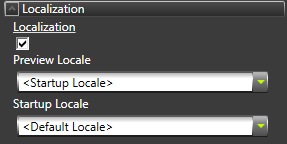
Once you enable localization in your project you can enable and disable localization for individual Text Block and Text Layer objects by right-clicking an object and selecting in the context menu Enable Localization for Object or Disable Localization for Object. See Disabling localization for individual objects.
After enabling localization you can start localizing your Kanzi application. See Localizing text resources and Localizing other resources.
You can also set which locale you want to use in the Kanzi Studio Preview and which locale your Kanzi application shows when a user launches it. See Setting the application startup locale and Setting the Kanzi Studio Preview locale.
Localizing text resources
Kanzi uses gettext's .po file format for handling localized text resources. See The Format of PO Files. To use a different format for importing and exporting localized text resources, you can use the Kanzi Localization Plugin API to create a Kanzi Studio plugin that supports the format based on your specifications. See Csv plugin example.
To localize text resources:
- In Library > Localization right-click the localization table the resources of which you want to localize, and select Export Localization Table. Kanzi Studio exports to <ProjectName>/Localization/<LocalizationTableName> the localization table template to a .pot file, and as many .po files as you have locales in that localization table.
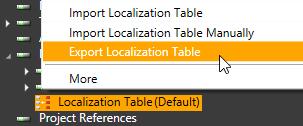
- (Optional) If you want to export all localization tables in your project, right-click Library > Localization and select Export All Localization Tables. Kanzi Studio exports to <ProjectName>/Localization/<LocalizationTableName> one localization table .pot template file for each localization table, and as many .po files as you have locales in all localization tables.
- This step depends on whether you are translating your Kanzi application for the first time or whether you are doing an incremental localization:
- If you are translating your Kanzi application for the first time, send the .pot file to your translators. For each locale you want to localize your Kanzi application to, the translators create one .po file.
- If you are doing an incremental localization, send only the .po files for each locale to the translators for that locale.
- After you receive the .po files from the translators, save them to <ProjectName>/Localization/<LocalizationTableName>.
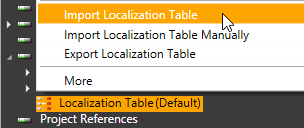
- In Kanzi Studio in the Library > Localization right-click the localization table the content of which your translators localized, and select Import Localization Table. Kanzi Studio imports all .po files in the <ProjectName>/Localization/<LocalizationTableName> directory to the selected localization table.
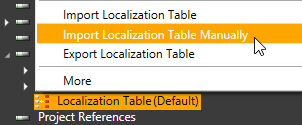
- (Optional) If you want to manually select the location from which you want to import the .po files for your project, select Import Localization Table Manually.
- (Optional) If you want to import .po files for all localization tables in your project, in the Library right-click Localization and select Import All Localization Tables. Kanzi Studio imports all .po files in all directories found in <ProjectName>/Localization.
-
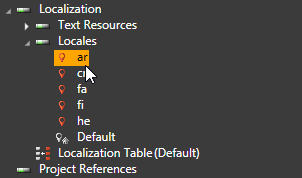
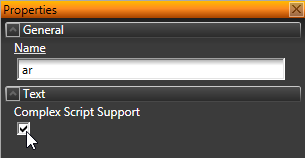
In the Library > Localization > Locales select the locale, and in the Properties enable the Complex Script Support property, if you want to:
- Show text in languages that write right-to-left.
- Use line breaks according to the Unicode line breaking algorithm.
- Use ligatures.
Localizing other resources
Besides translating the text content into multiple languages, Kanzi enables you to use different resources for each locale, including textures, styles, fonts, meshes, animations, composers, and materials. When you enable localization in your project, Kanzi Studio automatically adds all the text resources to the localization table. However, you have to manually add all other resources you want to localize.
To localize other resources:
- Create or add the resources to your Kanzi Studio project you want to use with locales in your Kanzi application.
For example, if you have five locales and want to use a different set of textures for each locale, import to your Kanzi Studio project the images for the textures for each locale.
- In the Library > Localization double-click the localization table that contains the resources you want to localize.
Localization Table Editor opens.
- In the Localization Table Editor under Other click Add resource and select from the drop-down menu the resource you want to localize. Your Kanzi application uses this resource as the default resource.
- In the Localization Table Editor in the column for each locale select the resource you want to use for that locale. If you do not select a resource for a locale, Kanzi uses the default resource for that locale.
Disabling localization for individual objects
Even when you decide to localize your Kanzi application, you do not always want to localize the content of some objects. When that is the case, you can disable the localization for individual objects.
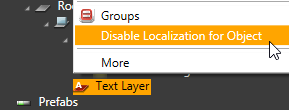
To disable localization for individual objects, in the Project right-click an object and select Disable Localization for Object.
Kanzi Studio replaces the Text Resource property with the Text property and assigns the value of the Text Resource property to the value of the Text property.
You can also enable localization for individual objects in your Kanzi application. See Enabling localization.
Accessing the localization functionality using code
You can access localization functionality in Kanzi also using the Kanzi API. When you want to control localization functionality in Kanzi applications with C application code use the functions in the KzuLocalizationManager.
See also
Localizing your application tutorial
Using locales
Internationalization
Using text blocks
Using text layers
Importing fonts
Localization
Open topic with navigation